
Medtech Hazardous Substances and Lead Notifications Icon
There are three processes involved in setting up the Hazardous Substances and Lead Notifications icon on your toolbar.
Process One - Install Advanced Form (Web)
This process creates a link to the Hazardous Substances and Lead Notifications form. Click here to install.
Process Two - Install Icon
This process imports the bestpractice icons into Medtech. The process is practice wide and
only needs to be performed once when installing new icons. It is safe to run this process while other users are
accessing Medtech.
Step One - Import Icons
click here to download the icon installer
A dialog box similar to the following will be displayed;
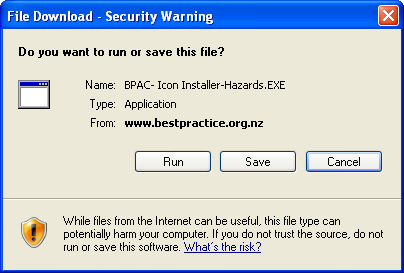
Click the Run button to install. Depending upon your internet and firewall settings you
may get a security warning when you click the Run button. The Icon Installer was developed for BPAC by
Medtech Global Ltd and has passed all our virus and security checks.
Click the OK button when the Update Complete box is displayed.
Step Two - Setup Dynamic Icons
Start Medtech and logon as normal
Select Reference Nos... from the Setup menu
Select the Dynamic Icons tab and click the Add... button
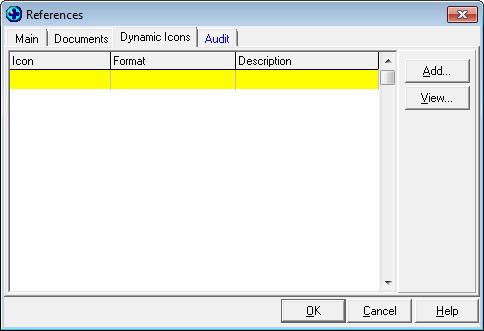
Select the Hazards icon from the Icon dropdown list
Select Advanced Form (F) from the Format dropdown list
Select Hazardous Substances from the Launch dropdown
The details entered should appear as follows;
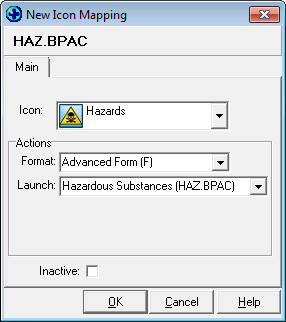
Click the OK button to save
Process Three - Setup User's Toolbar
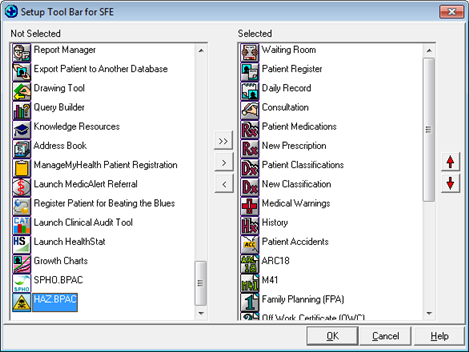
Adding the Hazardous Substances and Lead Notifications icon to the toolbar is the same as adding other icons to the toolbar,
which is accessed through the menu Window - Tool Bar - Setup.... The user may need to exit
and restart Medtech in order for the icon installed in process two to appear. This process needs to be repeated
for each user that requires a bestpractice toolbar icon.
If you require any assistance please phone our helpdesk on 0800 633 236